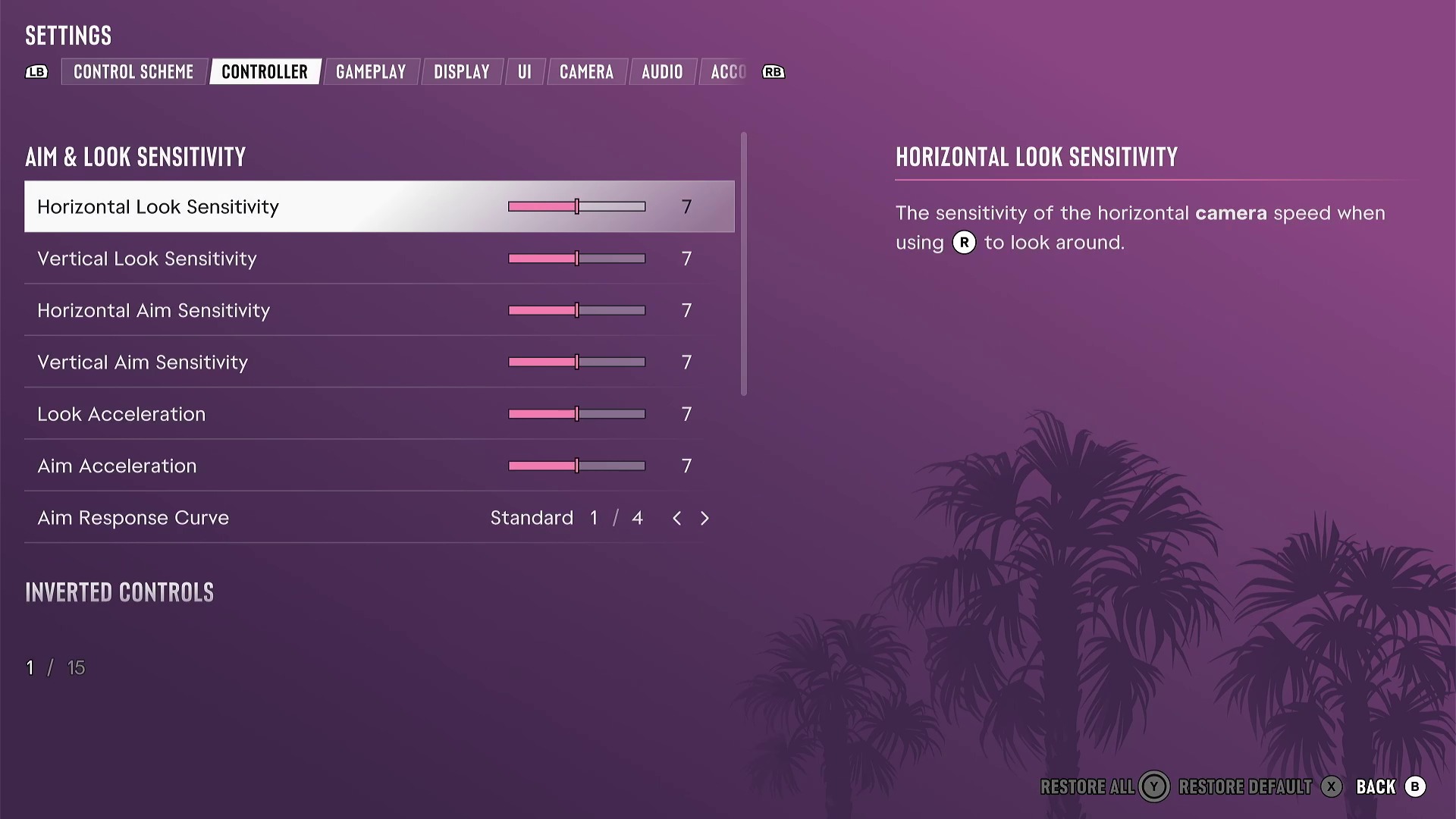
• HORIZONTAL LOOK SENSITIVITY: The sensitivity of the horizontal camera speed when using O to look around.
• VERTICAL LOOK SENSITIVITY: The sensitivity of the vertical camera speed when using O to look around.
• HORIZONTAL AIM SENSITIVITY: The sensitivity of the horizontal camera speed when using O while aiming.
• VERTICAL AIM SENSITIVITY: The sensitivity of the vertical camera speed when using O while aiming.
• AIM ACCELERATION: How quickly your camera reaches the highest speed when using O while aiming.
• AIM RESPONSE CURVE: The way O responds while aiming. Standard: Aim responsiveness is balanced between speed and precision.
• LOOK: Choose the direction of the camera when using O to look around. Default: Push up to look up, and down to look down. Push left to look left, and right to look right.
• MOVEMENT: Choose the movement direction when using O on foot and in a vehicle. Default: Push up to move forwards, and down to move backwards. Push left to move left, and right to move right.
• 3D MAP ROTATION: Choose the direction of the camera when using O to rotate the 3D map. Default: Push up to look up, and down to look down. Push left to rotate left, and right to rotate right.
• AIRCRAFT MOVEMENT: Inverts the vertical movement of O when controlling an aircraft.
• VIBRATION & HAPTICS STRENGTH: The strength of vibration from your controller. O
• DEADZONE (LEFT STICK): How far you have to move to register movement. A higher deadzone means you'll have to push O further. This can help with controllers experiencing stick drift to not register smaller movements. Lowering this value can result in unexpected movement from the stick.
• DEADZONE (RIGHT STICK): How far you have to move to register movement. A higher deadzone means you'll have to push O further. This can help with controllers experiencing stick drift to not register smaller movements. Lowering this value can result in unexpected movement from the stick.
• VIEW BUTTON: Choose whether to open the map or toggle the camera view when pressing @
• TARGETING: Choose your preference for aiming lock-on. Lock-On: Aiming will always attempt to lock on to the nearest target.
• AIM ASSIST STRENGTH: Slows down the movement of the reticle while aiming at a target.
• LOCK-ON TIME: Keeps your aim locked on to a target before reverting to free aim. A longer lock-on time makes it easier to track moving targets.
• LOCK-ON TARGET SWITCH: While locked on, allows O to switch to other targets nearby.
• QUICK DRAW: Draws your last equipped weapon when using and pressing If carrying two longarms, your off-hand weapon will be drawn instead.
• DRIVE-BY ASSIST: While driving, firing a weapon auto-aims to nearby targets.
• SHOOTING ASSIST: Assists with tracking targets that are within close proximity.
• COVER SELECTION: Choose whether the camera orientation is considered when finding a position to take cover.
• HOLSTER IN VEHICLE: Choose to automatically or manually holster drawn weapons after a short time while in a vehicle and not in combat.
• MOVEMENT SPEED: The max movement speed when using O Walk: Your max speed will be a walk when O is fully pushed.
• COMBAT MOVEMENT SPEED: The movement speed when using O during combat. Your default movement speed will override this setting if it's faster. Fast Walk: Your max speed will be a fast walk when O is fully pushed. Ease off the stick to move at slower speeds.
• STAND & SPRINT: Stands you up automatically when activating sprint instead of staying in a crouch.
• TAP ASSIST: Choose how to complete actions requiring repeated presses. A single press can register as 2, 3, or 4 presses, or can be swapped to a hold.
• HOLD DELAY: Delays holds to avoid accidental presses.
• HOLD ASSIST: Choose how to complete actions requiring holds. A hold will register as a full hold when the button is pressed for 2x, 3x, or 4x less time than the default.
• FOCUS: Assign the input for using focus and combat focus. Warning: Using @ may make other actions on the same input unavailable.
• D-PAD ACTIONS: Choose how to perform D-pad hold actions, such as using quick navigation or the radio
• AIMING: Choose whether you hold or press to aim.
• LOADOUT: Choose how to access your loadout. Hold: Hold to open your loadout.
• FISHING: Choose the reeling controls when fishing. Rotate: Rotate O to reel in a fish.
• NITROUS: Choose whether you hold or press when using the vehicle nitrous.
• SIMPLIFIED MINI GAMES: Simplifies the interactions needed for situations such as exercising, hotwiring, and basketball.
• AUTO DRIVE: Drives you automatically to your set destination. Auto Drive can only be enabled when in cinematic camera. Restricted: Only available in safe scenarios.
• AUTO EQUIP HELMET: Automatically equips your helmet when getting on certain vehicles, such as motorcycles and bikes. The helmet will be unequipped when you get off.
• ACCESSIBLE COMBAT: Reduces enemy health and damage taken by your character. Warning: This will significantly change the balance and experience of gameplay.
• REDUCED VEHICLE DAMAGE: Reduces damage taken by your vehicle. Warning: This will significantly change the balance and experience of gameplay.
A professional-grade race track pit lane featuring branded signage and high-performance stock cars, indicating the presence of organized motorsport events in Leonida.